This guide explains how to connect a DSL router to a master telephone socket, power it on and connect devices by Wi-Fi or Ethernet. It applies to ADSL and many fibre-to-the-cabinet (FTTC) services.
It does not apply to full-fibre (FTTP) services. A full-fibre router connects to an Optical Network Terminal (ONT) with an Ethernet cable, not to a DSL telephone socket.
2026 service note: ADSL and other copper-dependent services are affected by the UK’s 31 January 2027 PSTN retirement. Follow these instructions only if your provider has confirmed that your active service still uses DSL. If you are being migrated, use the setup instructions supplied for the replacement service.
Before you start
- Check that the broadband service is active and that your provider has confirmed the installation or activation date.
- Use the DSL router and power adapter supplied or approved for the service.
- Have a DSL or broadband cable ready.
- Use a microfilter if the master socket has only one port.
- Have an Ethernet cable for any wired devices.
- Find the Wi-Fi name and password on the router label or setup card.
How to connect your DSL router step by step
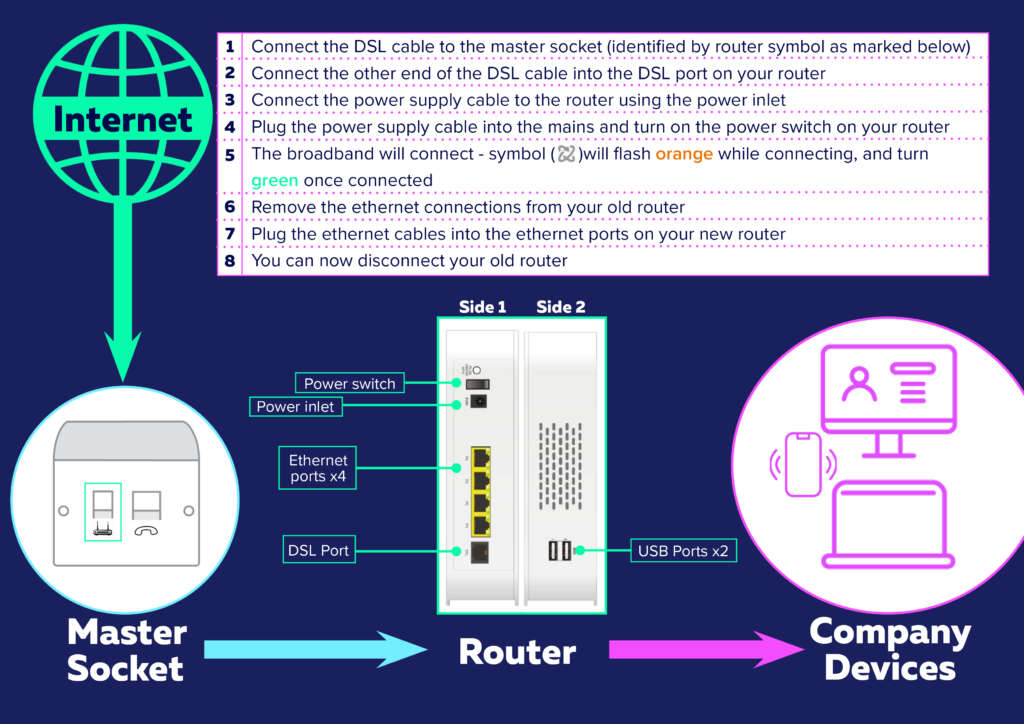
- Find the master telephone socket. This is usually where the line enters the premises and normally provides the most stable DSL signal.
- Check whether you need a microfilter. For a two-port socket, connect directly to the broadband port. For a single-port socket, fit a microfilter first.
- Connect the DSL cable. Plug one end into the router port labelled DSL or Broadband. Connect the other end to the broadband socket or microfilter.
- Connect the power. Use the supplied adapter, then switch on the router.
- Wait for the connection. Allow several minutes for the DSL or Broadband light to become steady. Labels and colours vary between router models.
- Connect your devices. Join the Wi-Fi network using the supplied details, or connect a device to a LAN port with an Ethernet cable.
- Test the service. Open a website on a connected device to confirm that the connection works.
Do you need a microfilter?
A single-port master socket normally requires a microfilter. It should be the first device connected to the socket. Plug the router cable into its DSL, Modem or Broadband port and telephone equipment into its Phone port.
A socket with separate phone and broadband ports is already filtered, so an additional microfilter is not normally required.
Where should you position the router?
Place the router upright in an open, central position. Keep it away from floors, cupboards, large metal objects, thick walls and electrical equipment that may interfere with Wi-Fi.
Avoid telephone extension cables because they can weaken the DSL signal. Use Ethernet or a suitable Wi-Fi extension solution if the master socket is far from the devices you need to connect.
What if the DSL router does not connect?
- Confirm that the service activation date has arrived.
- Check that the cable is in the DSL or Broadband port, not a LAN or WAN port.
- Push each cable in firmly and confirm that the power light is on.
- Make sure a single-port socket has the correct microfilter.
- Disconnect unnecessary telephone extensions or adapters while testing.
- Wait several minutes after switching on; repeated restarts can delay diagnosis.
- Do not press the factory-reset button unless your provider or WayvCare advises you to do so.
If the DSL or Internet light still does not become stable, contact WayvCare support. Tell the team the activation date and which lights are on, flashing or off.
DSL router setup FAQs
Which router port should the telephone cable use?
Use the port labelled DSL or Broadband. Do not connect the telephone cable to an Ethernet LAN or WAN port.
How long should a DSL router take to connect?
Initial startup normally takes several minutes. Allow time for the router to establish a DSL signal before troubleshooting.
Can I connect the router to an extension socket?
It may work, but the master socket usually provides a stronger and more stable signal. Avoid telephone extension cables where possible.
Is DSL the same as full fibre?
No. DSL uses a copper telephone line for at least the final part of the connection. Full fibre uses an ONT, and the router connects to it using Ethernet.
Will DSL continue after the 2027 PSTN switch off?
Copper-dependent services are being retired or migrated. Contact your provider to confirm the replacement available at your address and do not buy equipment until the service type is confirmed.
Need help connecting your router?
WayvCare can help Wayv customers check cabling, status lights and service activation. Have the router model and light status ready when you contact the team.